
Queue and capacity control for pop-up stores
Updated
One QR code outside puts guests on the waiting list from their phone. One inside counts them out. Your door team sees the live count against the cap and holds the door when it is full. No clickers, no sensors, no app for guests.
Every product image on this page is a real screenshot of the dashboard, configured for a 40-person store floor.
A pop-up has a small floor, a hard cap, and a line that kills the vibe
Three numbers decide whether the day works: how many are inside, how many are waiting, and how long until the next spot opens.
The clicker lies
One person at the door tapping plus and minus, groups walking past in both directions, a shift change at two. By four nobody trusts the number, so the door just guesses.
The line is the problem
A queue on the pavement is the one thing a landlord, a centre manager and a brand all hate. It blocks the frontage, it looks like a fire risk, and guests at the back leave.
Over the cap is not an option
The fire number is not a target. A launch that gets written up for overcrowding is a launch the client does not repeat, whatever the sales were.
How a pop-up day runs
The same four screens your door team will use
Captured from the real dashboard on a 40-person store floor. Names are sample data.
Guests scan, you call, you check in
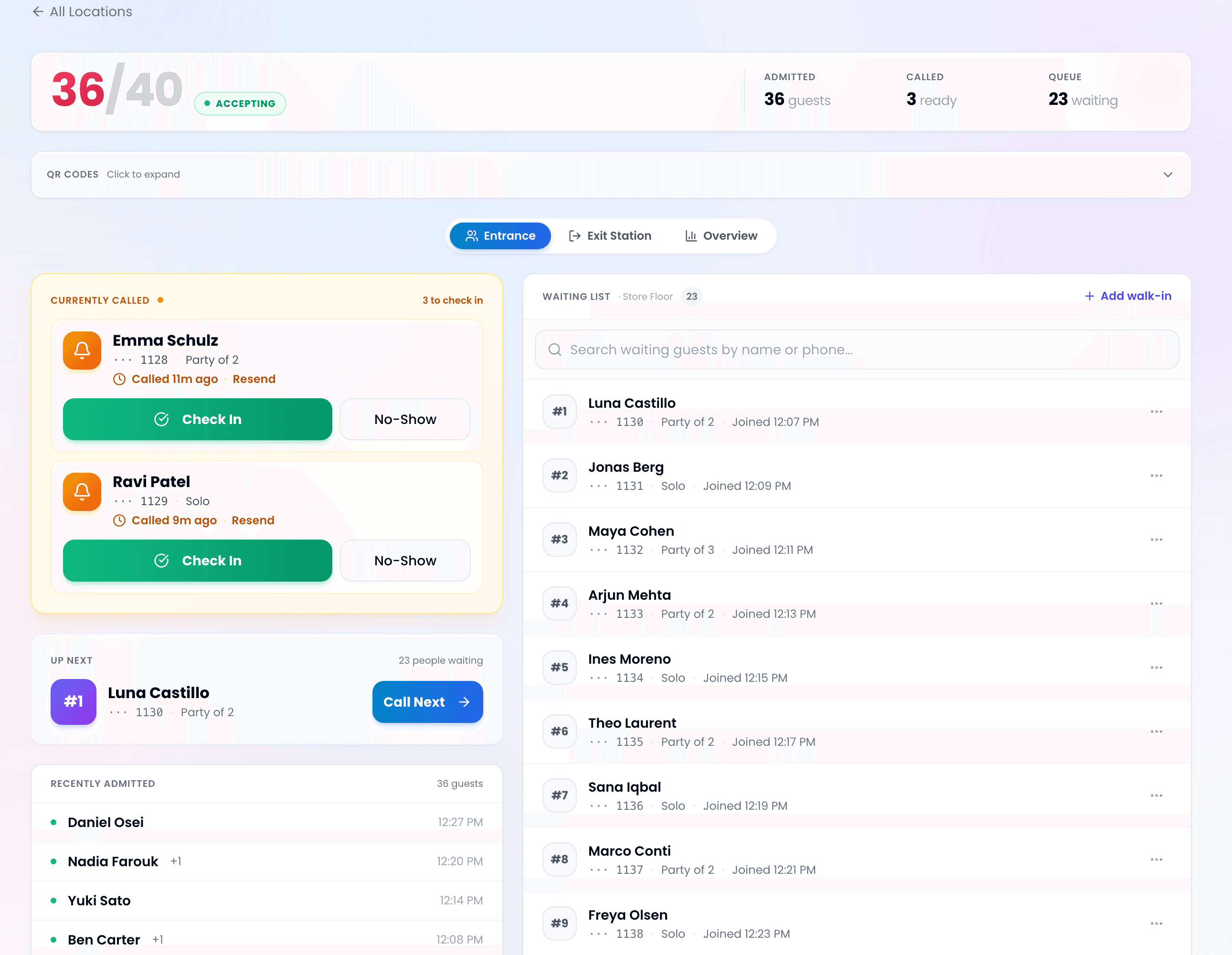
The entrance poster puts people on the waiting list from their phone. The door team calls the next party, checks them in when they reach the rope, and the count goes up by the party size.
The floor fills up
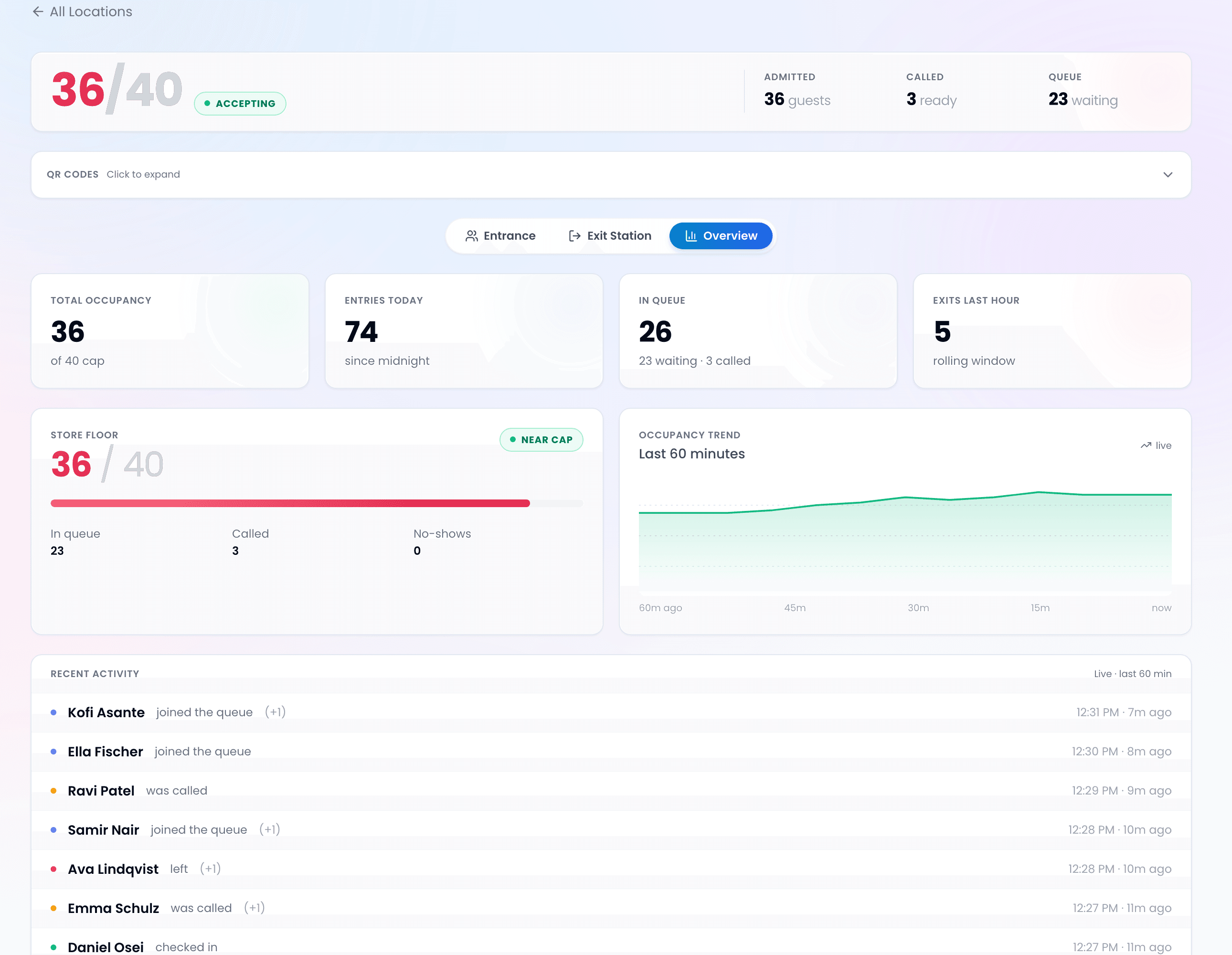
At 36 of 40 the header turns red and the floor card reads Near cap. The Overview tab shows entries since open, exits in the last hour, and a 60-minute occupancy trend so the manager can see the wave coming.
Full means paused, not guessed
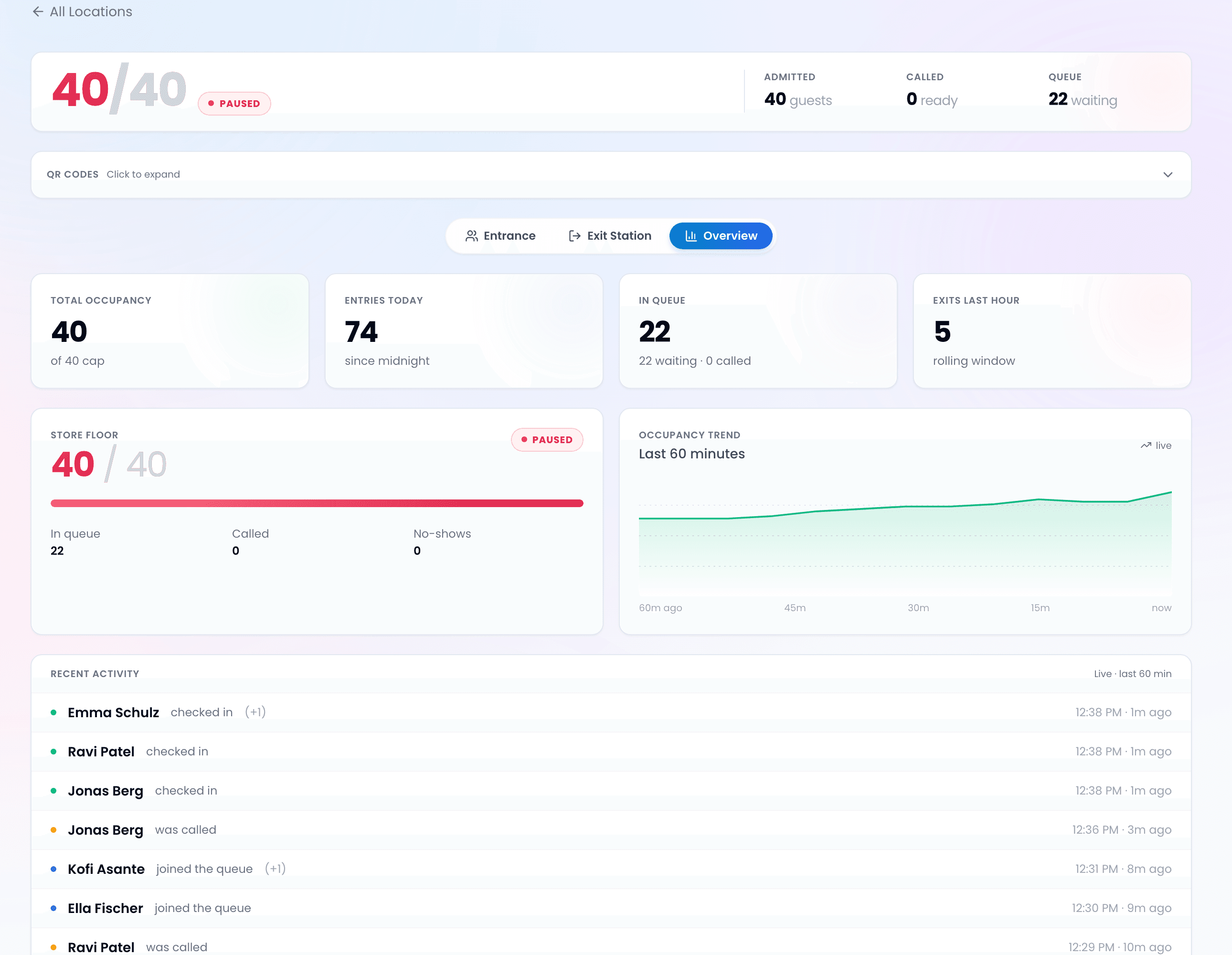
At 40 of 40 the status flips to Paused. Nobody new is checked in until someone scans out. The queue outside keeps growing on the phones, not on the pavement, and every guest still gets their turn.
Guests leave, spots open
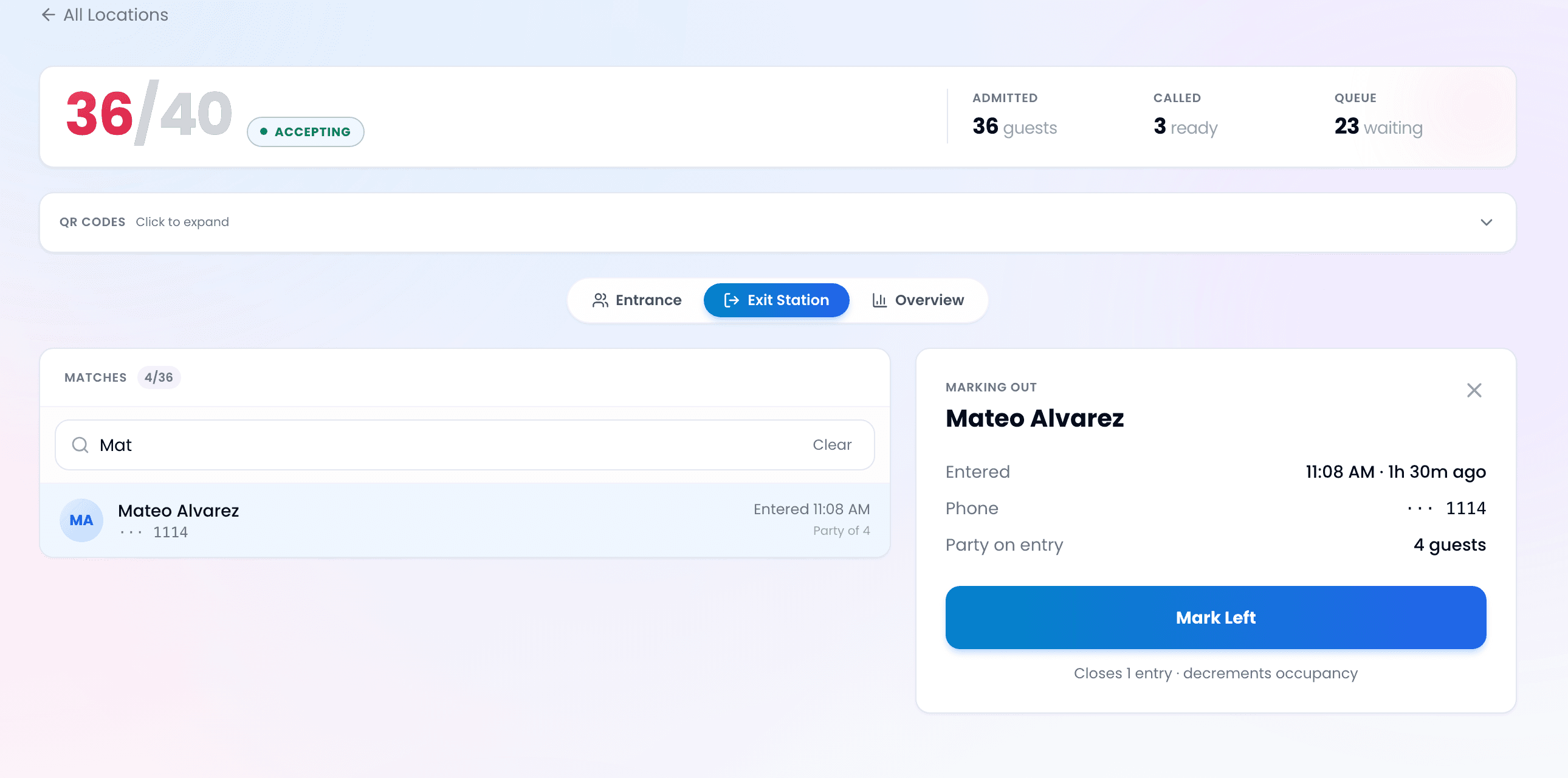
Most guests scan the exit poster on their way out. For the ones who do not, the Exit Station finds them by name or phone and marks the whole party out in two taps. A timer closes anything left open.
What guests see
Scan, wander, get a text, come back, scan out
No app, no account. The ticket lives in their browser and updates itself.
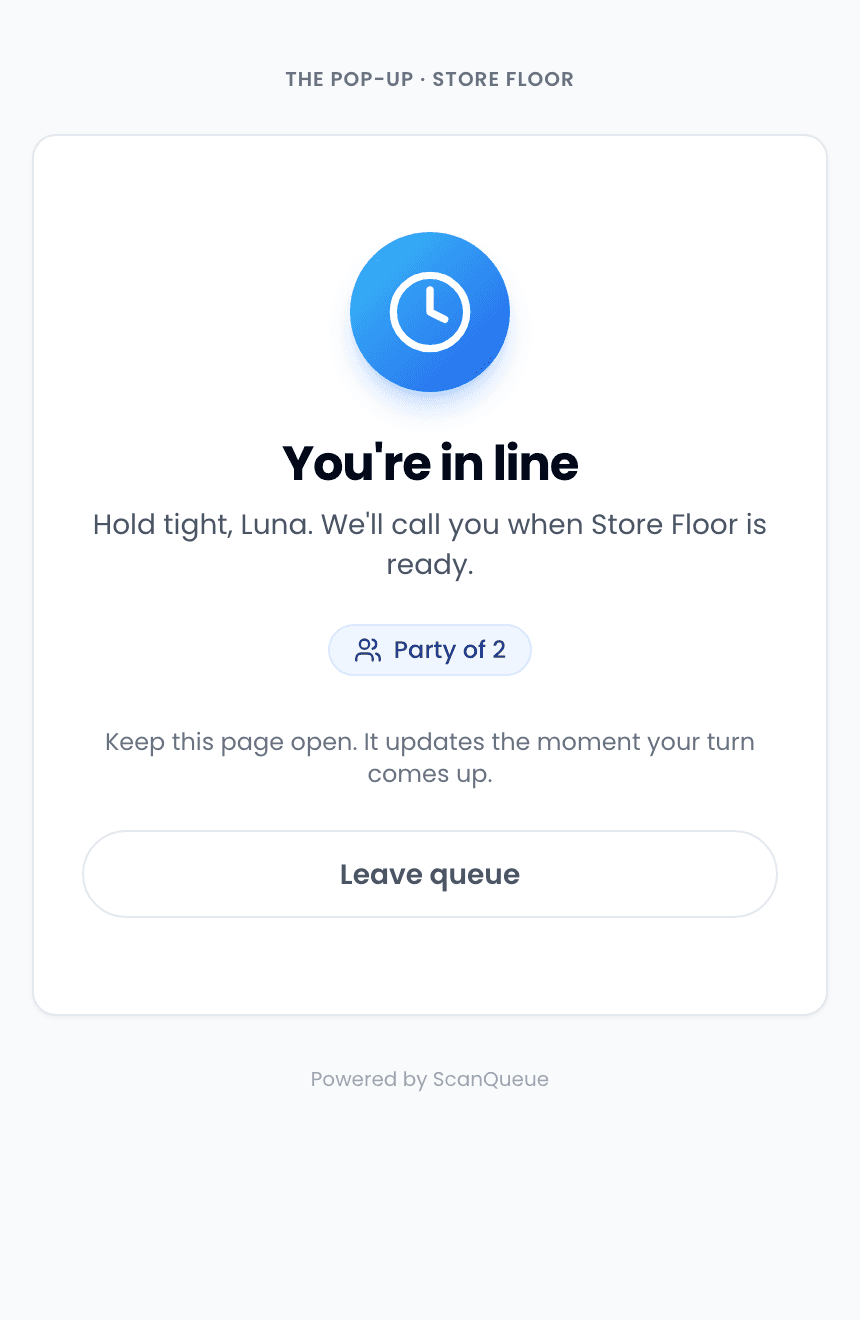
Outside
They join from the entrance poster, see they are in line with their party size, and can walk off to get a coffee. A text brings them back when it is their turn.
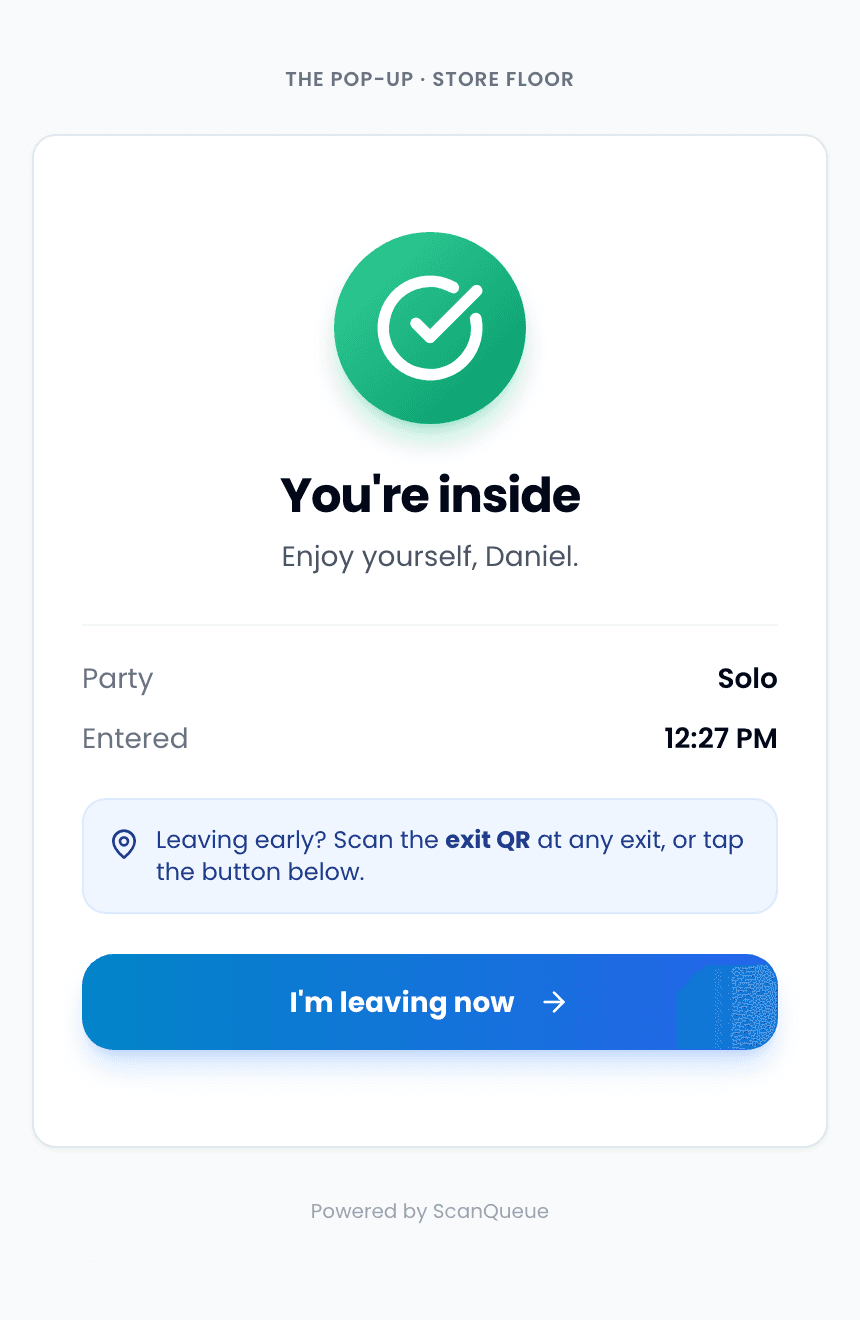
Inside
After check-in the ticket shows they are inside and when they entered. On the way out they scan the exit poster or tap the button. Either one frees their spot.
Setup
Two posters and three numbers
Set the capacity, the typical visit length and the auto-checkout timer. Print the entry and exit posters from the dashboard. That is the install.
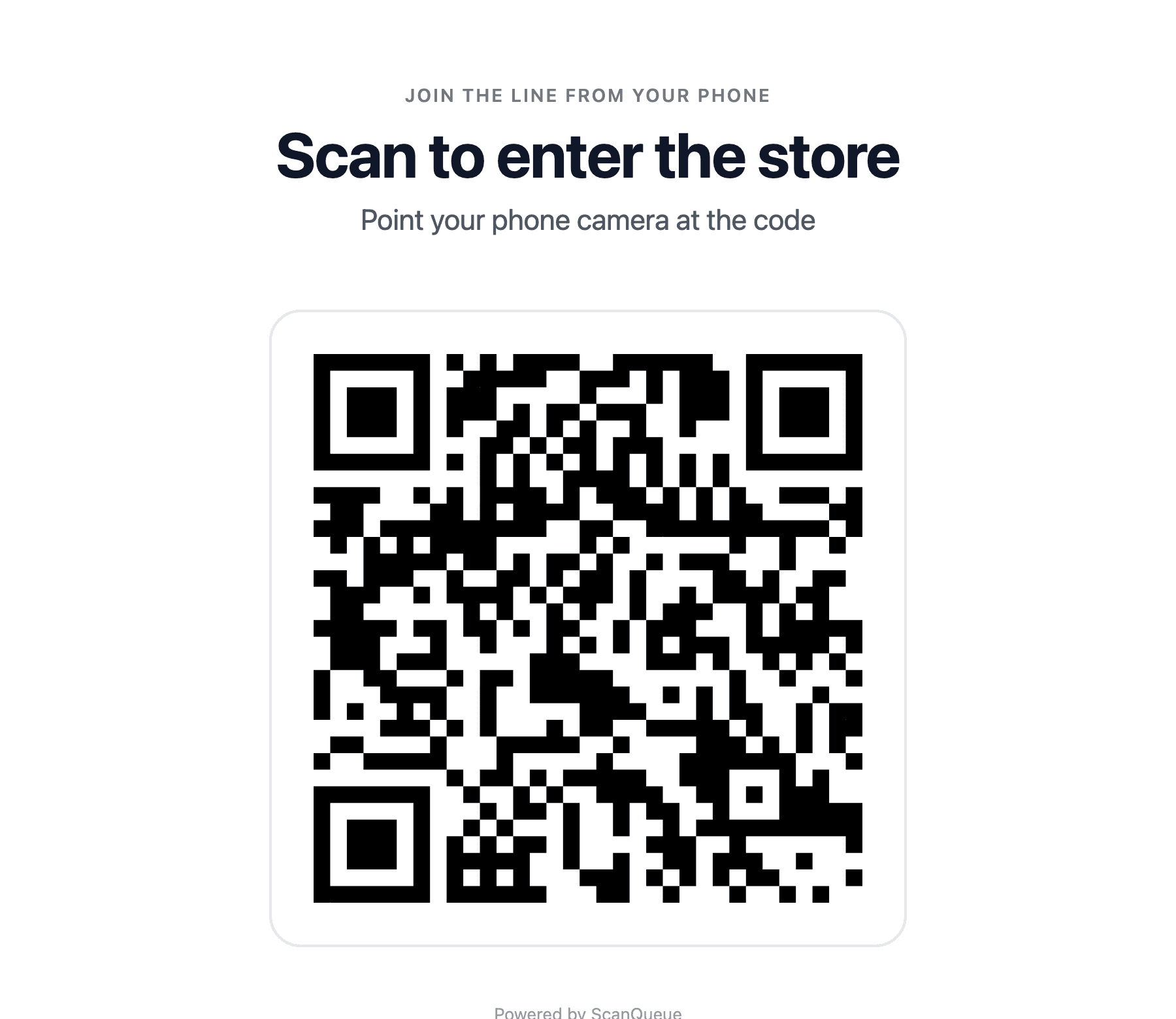
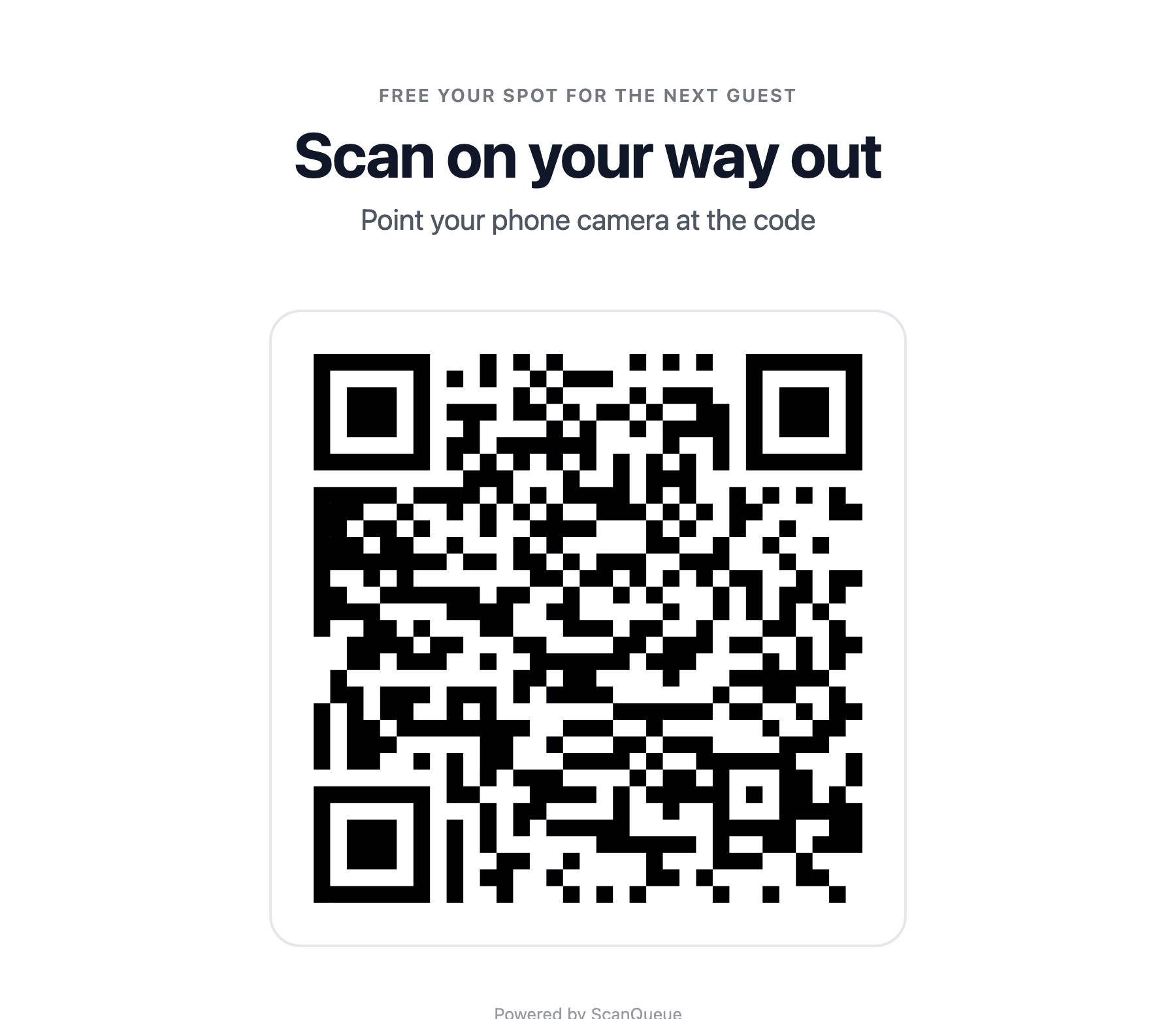
The posters. Headings are yours to change. One goes at the rope, one at every exit. Printed straight from the dashboard.
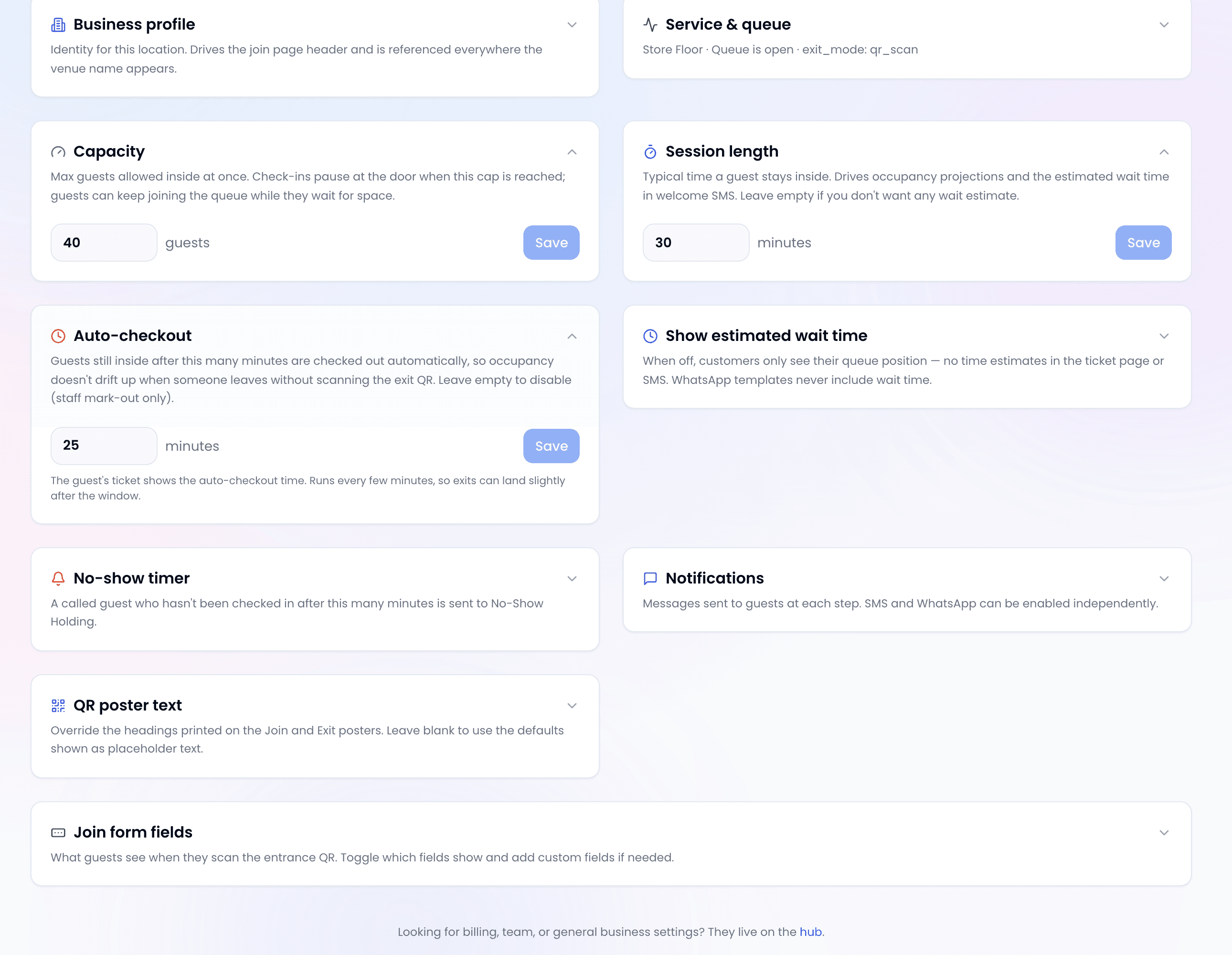
The settings. Capacity is the fire number. Session length drives the wait estimate. Auto-checkout is the safety net for guests who leave without scanning. Each field saves on its own.
Staff app
Run the door from a phone
The free staff app for iPhone and Android shows the same count, the same called list and the same waiting list as the web dashboard. One person at the rope, one at the exit, one watching the floor, all on their own phones, all in sync within about a second.
Call next, check in, no-show, mark out. Nothing to configure on the phone; settings stay on the web.
About the staff app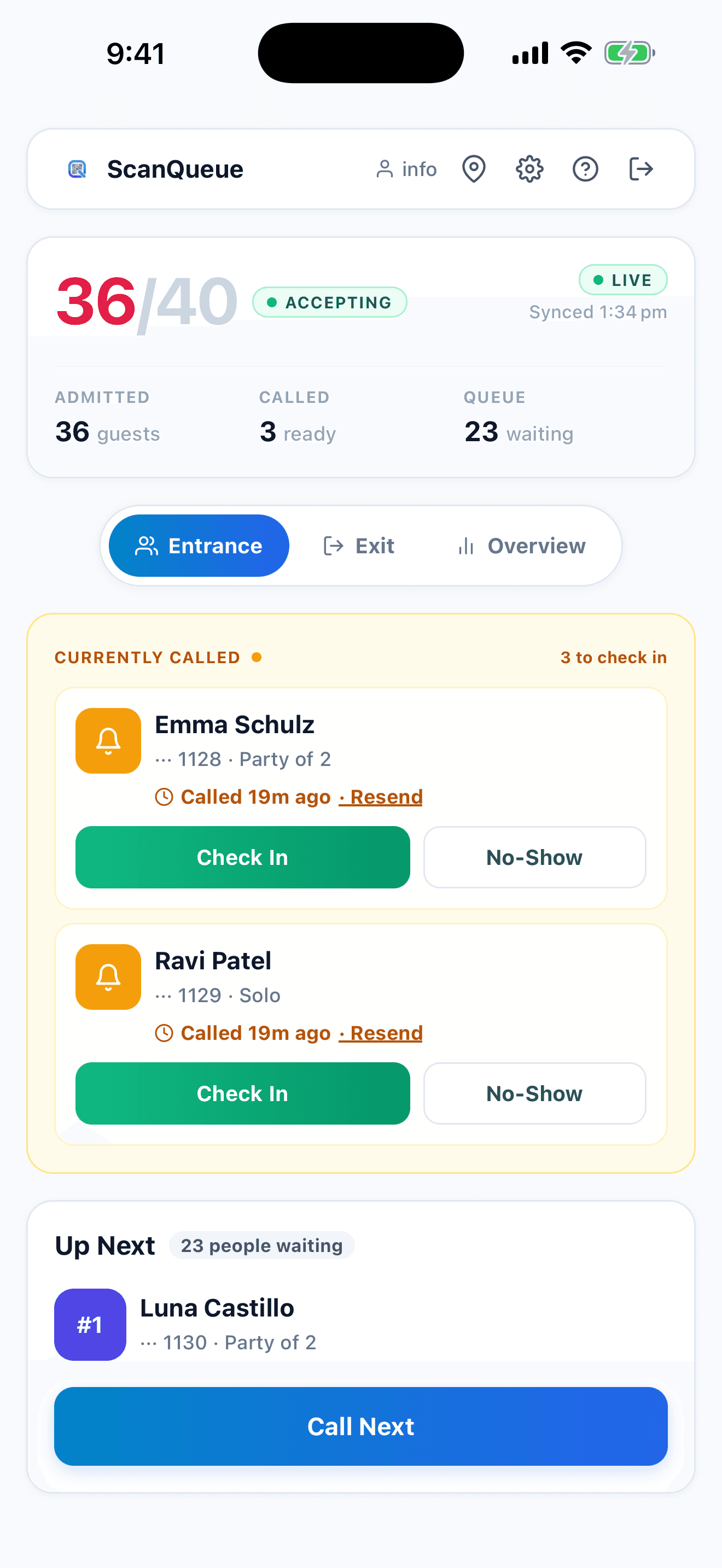
Built for short runs with a hard number on the door
Product launches
A few hundred guests an hour through a floor rated for sixty. The queue is the marketing; the count keeps the fire officer happy.
Beauty and fashion pop-ups
Try-on and sampling floors where dwell time is long and the cap is small. Session length and auto-checkout keep the number honest.
Mall and street activations
Centre management wants no line on the concourse. Guests wait from the food court and get a text.
Holiday markets and stalls
A tent or a shipping container with a twenty-person limit. Two posters and a phone are the whole setup.
Sample sales
Entry in waves. Your door team pauses at the cap, releases as people leave, no shouting at the rope.
Gallery and studio openings
A room with a number on the wall. Know who is inside, not just how many, and get the list afterwards.
Against the clicker and the sensor
| What you need on the day | Clicker or clipboard | Sensor counter | ScanQueue |
|---|---|---|---|
| Counts groups by party size, not clicks | |||
| Knows who is inside, not just how many | |||
| Runs the waiting list outside as well | |||
| Warns and disables admits at the cap | |||
| Survives a shift change | |||
| No hardware to buy, mount or return | |||
| Texts guests when it is their turn | |||
| Works on staff phones |
Want the full occupancy story beyond pop-ups? See Live Capacity.