You can set up a fully working QR code queue system in under 5 minutes — no hardware, no app downloads, no IT department required. All you need is a free account, a printer, and a phone. This guide walks you through every step, from creating your account to serving your first customer through a digital queue.
QR code queuing has grown quickly since 2020. Juniper Research forecast that more than 2.2 billion people would use QR code payments by 2025, up from 1.5 billion in 2020. That familiarity makes QR code queues instead of paper sign-ups an easy switch for most customers.
The barriers to entry have never been lower. Let's get you set up.
What You Need Before You Start
Before diving into the setup steps, gather these basics:
- An email address — for your account
- Your business name — as you want customers to see it
- A printer — to print your QR code (any standard printer works)
- A device with a browser — phone, tablet, or computer to manage your queue
That's it. No special hardware, no POS integration, no technical knowledge required.
Step 1: Create Your Free Account
Head to ScanQueue's sign-up page and create your account. You'll need your email, a password, and your business name. The free Starter plan includes everything you need to run a basic queue — no credit card required.
Once you've confirmed your email, you'll land on the setup wizard. This walks you through the essential configuration in about 60 seconds.
Pro Tip — Skip the Perfectionism: You can change every setting later. Don't spend 20 minutes choosing the perfect SMS template on day one. Get a basic queue running, test it yourself, then refine.
Step 2: Customize Your Join Form
Your join form is what customers see when they scan your QR code. Navigate to Settings → Queue Settings in your dashboard to configure it.
Key settings to configure:
- Required fields: Name and phone number are essential. Phone enables SMS notifications so customers know when it's their turn.
- Party size: Critical for restaurants — helps you allocate the right table.
- Service selection: If you offer multiple services (e.g., haircut, colour, beard trim), enable service selection so customers pick what they need.
- Custom notes field: Let customers add special requests, allergies, or preferences.
Keep it simple. Every extra field adds friction. For most businesses, name + phone number + one optional field is the sweet spot.
Step 3: Generate and Print Your QR Code
Go to Settings → QR Code in your dashboard. Your unique QR code is automatically generated and linked to your business's join page. Download it as a high-resolution PNG image.
Printing tips for maximum scans:
- Size matters: Print at least 3 inches (7.5 cm) square. Bigger is better — customers shouldn't need to lean in.
- Add a clear call-to-action: "Scan to Join the Queue" or "Skip the Line — Scan Here" works well.
- Laminate it: A $2 lamination pouch keeps it clean and durable.
- High contrast: Black QR on white background. Don't get creative with colours — it reduces scannability.
Pro Tip — Multiple Placements: Don't rely on a single QR code at the front door. Place them on tables, on your window, at the counter, and near the waiting area. The more visible it is, the higher your adoption rate.
Step 4: Position Your QR Code Strategically
Where you place your QR code determines how many customers use it. The best placements depend on your business type:
Restaurants:
- Front entrance or host stand (eye level)
- Window facing the street (for passersby)
- A-frame sidewalk sign
Barbers and salons:
- Front door or window
- Waiting area wall
- Reception counter
Clinics:
- Front reception desk
- Parking lot sign (for car-wait check-ins)
- Inside elevators or near building entrance
Step 5: Manage Your Queue from the Dashboard
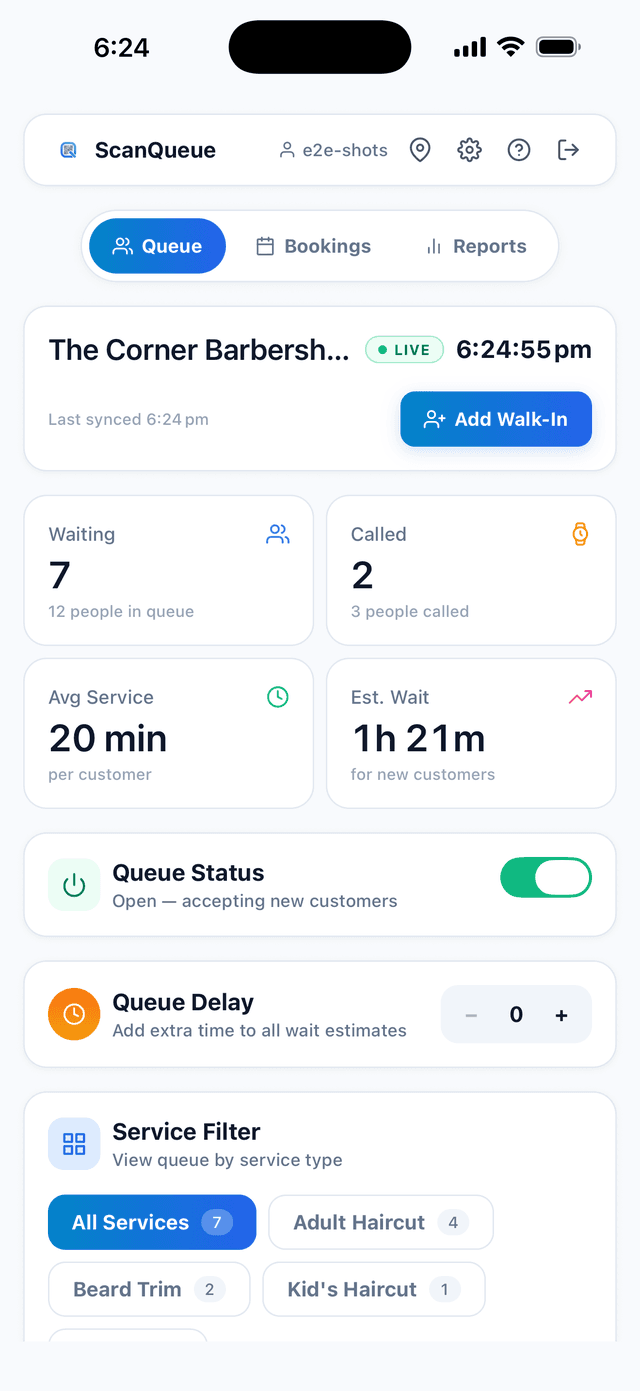
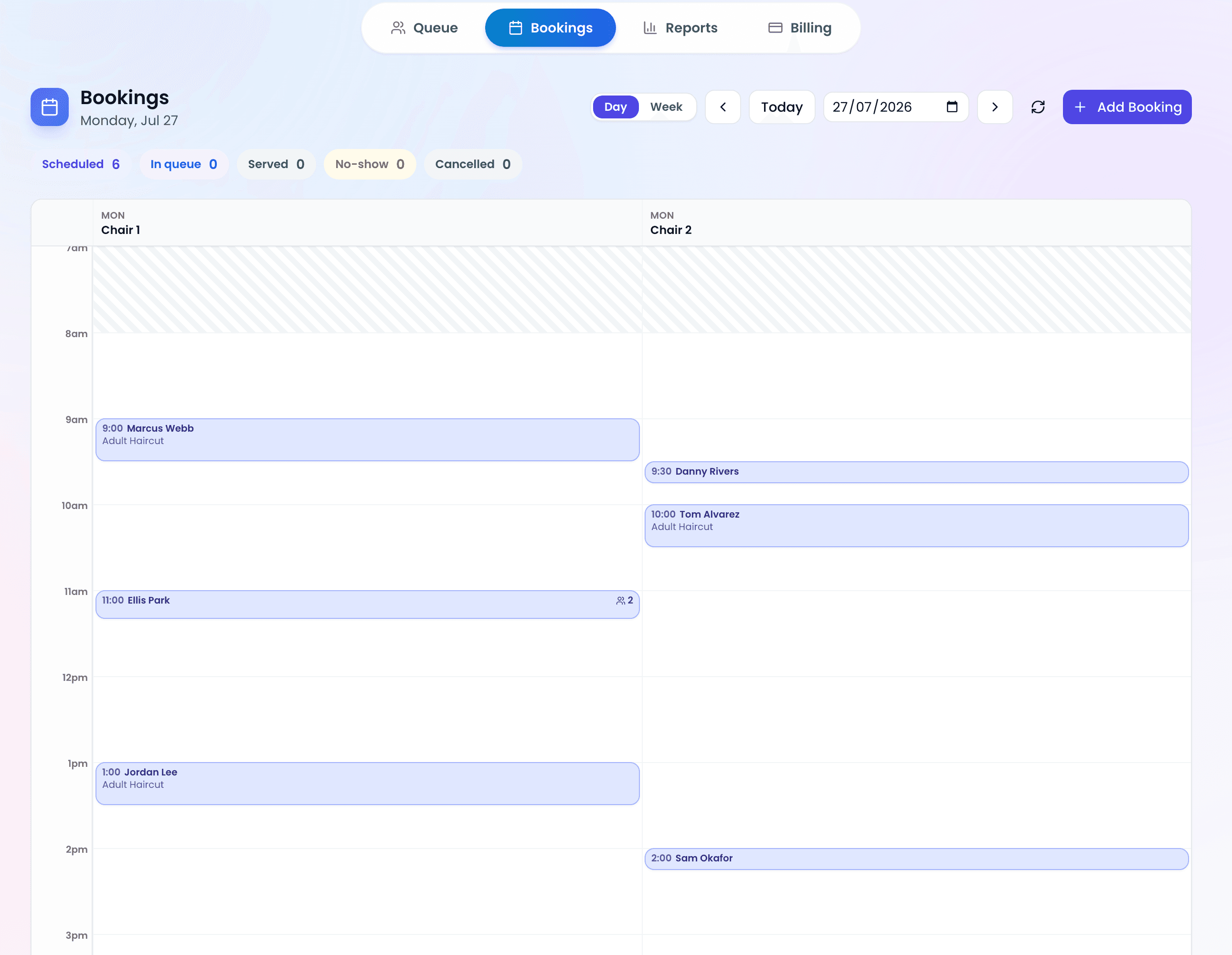
Open your ScanQueue dashboard on any device. As customers scan the QR code and join, they'll appear in your queue in real time. From here you can:
- Notify the next customer — one click sends an SMS telling them it's their turn
- Mark as served — remove completed customers from the queue
- Add walk-ins manually — not everyone will scan. You can add them by hand in seconds.
- View wait times — see estimated waits and current queue depth
The dashboard works on phones, tablets, and computers. Most businesses use a tablet at the counter for the host or receptionist, but it works on anything with a browser.
What Happens on the Customer's Side
Understanding the customer experience helps you explain it to walk-ins. Here's what they see:
- Scan the QR code with their phone camera (no app needed)
- Fill in the form — name, phone, party size
- See their position in the queue with an estimated wait time
- Receive an SMS when their turn approaches
- Walk in ready to be seated or served
The whole process takes about 15 seconds from scan to confirmation. Customers can leave the area, grab a coffee, or wait in their car — they'll be notified automatically.
Quick Troubleshooting Tips
A few common issues and fast fixes:
- "Customers aren't scanning" — Make the QR code bigger, add a clear instruction like "Scan to Join", and have staff point it out during the first week.
- "Some phones can't scan" — Very old phones (pre-2018) may need a QR scanner app.
- "Staff forget to check the dashboard" — Turn on sound notifications and keep the dashboard open on a dedicated tablet.
Frequently Asked Questions
Do customers need to download an app?
No. The QR code opens a mobile web page directly in the phone's browser. No app download, no sign-up, no friction. This is one of the biggest advantages over older queue management systems that required dedicated apps.
Does it work without internet?
Customers need a mobile data or Wi-Fi connection to scan and join. Your dashboard also requires internet. For most businesses this is not an issue — if your card machine works, the queue system will too.
How much does a QR code queue system cost?
ScanQueue offers a free Starter plan that includes QR code check-in, a live queue dashboard, and basic notifications. Paid plans with SMS notifications and analytics start at $99/month. See full pricing details.
Can I still add walk-ins who don't scan the QR code?
Absolutely. Staff can add customers manually from the dashboard in under 5 seconds. The QR code reduces staff workload but doesn't replace the option to add people by hand.
Related: For the full rundown, see our guide to QR code check-in systems.
Set Up Your QR Code Queue in 5 Minutes
Free plan available. No credit card required. No hardware needed.
Create Your Free Account →Stop losing walk-ins to wait times
Set up ScanQueue in 5 minutes. Customers scan a QR code, get SMS alerts when it's their turn, and wait anywhere.
- Free plan — no credit card
- No app download for customers
- QR code, SMS, and WhatsApp notifications
ScanQueue Team
Queue Management Experts
Helping businesses reduce wait times and improve customer experience with smart queue management solutions.